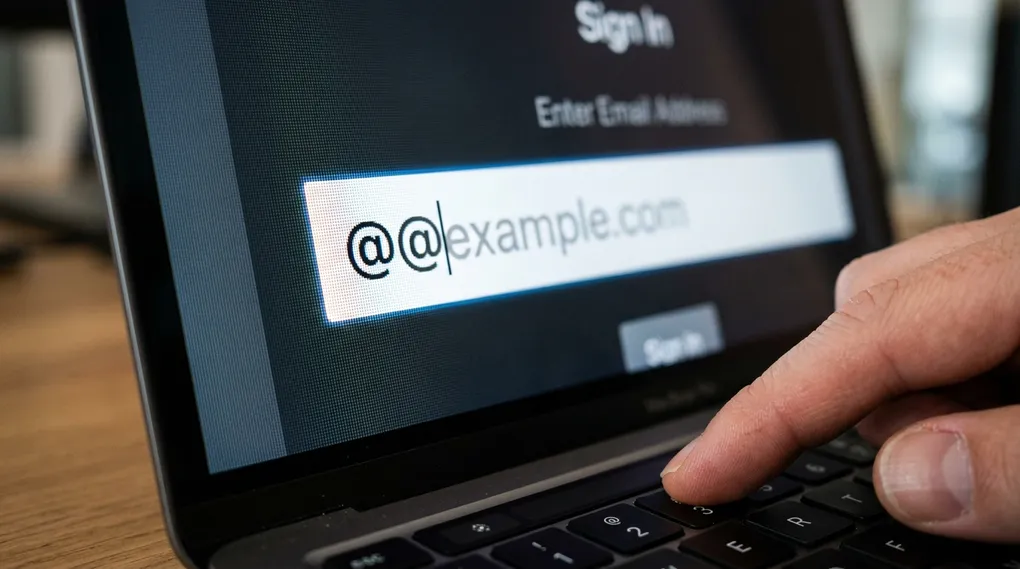
Think about how many times a week you type your email address.
You type it when you log into a new website, when you fill out a shipping form, when you sign up for a newsletter, and when you share your contact info. It is tedious, repetitive, and completely unnecessary.
What if you could just type @@ and your phone or computer would instantly expand it into your full email address?
You can. It takes exactly one minute to set up using a built-in feature called Text Replacement. Here is how to do it.
How to set it up on iPhone & iPad
Apple has this feature baked right into the operating system. Once you set it up, it syncs across all your Apple devices automatically via iCloud.
- Open your Settings app.
- Tap on General, then tap on Keyboard.
- Tap on Text Replacement.
- Tap the + (plus) icon in the top right corner.
- In the Phrase box, type your full email address (e.g., john.doe@gmail.com).
- In the Shortcut box, type
@@(two at-symbols). - Hit Save.
That’s it! Open a text message or a web browser right now and type @@ followed by the spacebar. Your email will instantly appear.
(Pro tip: If you have a work email and a personal email, make your personal shortcut @@ and your work shortcut @@w).
How to set it up on a Mac
If you use a Mac, your iPhone shortcut might have already synced! If not, you can add it directly from your computer.
- Click the Apple logo in the top left corner of your screen.
- Select System Settings.
- Scroll down the left menu and click on Keyboard.
- Click the Text Replacements… button.
- Click the + button at the bottom.
- In the “Replace” column, type
@@. In the “With” column, type your email address.
How to set it up on Windows
Windows doesn’t have a robust text-expansion tool built directly into the core operating system, but Microsoft offers an official (and free) power-user tool to do exactly this.
- Download Microsoft PowerToys from the Microsoft Store.
- Open PowerToys and turn on the Text Extractor / Paste as Plain Text modules, or use a lightweight third-party app like Beeftext (which is free and open-source).
- Set your trigger word to
@@and your replacement text to your email.
Other Great Shortcuts to Try
Once you realize how much time this saves, you will want to use it for everything. Here are a few other shortcuts you should add to your library today:
##➔ Your full phone number&&➔ Your home addressomw➔ “I’m on my way, see you soon!”zzoom➔ Your personal Zoom meeting link
Take 60 seconds to set this up today. It is one of those tiny tech tricks that makes your daily digital life just a little bit smoother.
Continue Reading

7 Hidden Browser Tricks You’ll Wish You Knew Five Years Ago

Tab Debt: Why You Have 47 Tabs Open (And How It’s Ruining Your Focus)

The Anatomy of a Minimalist Desk: What Actually Matters for Daily Focus

5 Tiny, Free Web Tools That Do Just One Job Perfectly

The 'Dumb Tools' Revival: Why People Are Abandoning Complex Apps for Plain Text